General
How do I use the menu bar on iPad?iOS only
On an iPad, the menu bar at the top of the screen gives you quick ways to add a visit, add a contact, find a contact, and get help.
Show the menu bar
Use Windowed Apps or Stage Manager on iPadOS 26 or later.
Swipe down from the top edge of the screen.
What's in it
File: Log Visit, Add Time (when you log hours), Add Contact, New Plan, and Backup & Restore.
Edit → Find Contact: opens Contacts with the search field ready.
Help: opens the Help Center, What's New, your email app for private support, and Check for Update.
WitnessWork Preferences: opens WitnessWork's settings. The standard Settings item opens your iPad's settings.
Good to know
These items open the same screens as the app. Opening a form doesn't save anything.
The menu bar isn't on iPhone or Android.
If something goes wrong
Items are missing: update WitnessWork from the App Store and open it again. You can still do the same things inside the app.
Still stuck: use the Help Center's private email link, and keep contact details and backups out of public reports.
How do I lock WitnessWork with my face, fingerprint, passcode, or a passkey?
You can make WitnessWork ask for your face, fingerprint, or passcode every time it opens.
Turn on the lock
Open Settings → Privacy.
Turn on Require Face ID. On other phones it says Require Touch ID, Require Passcode, or, on Android, Require Biometric Unlock.
Confirm it's you.
Under Require, choose how soon WitnessWork asks again after you leave it: right away, or after 1, 5, or 15 minutes.
Turn it off
Open Settings → Privacy, turn the switch off, and confirm it's you.
Good to know
If your face or fingerprint isn't recognized, use your phone's passcode, PIN, pattern, or password.
The lock is only on the phone where you turn it on. Turn it on separately on each device.
Your phone needs a passcode or screen lock. If it has none, tap Open Settings when WitnessWork asks, set one up, then turn the lock on again.
While the lock is on, the app switcher shows a blank card. On Android, this needs Android 13 or later.
The lock covers the app only. Widgets, notifications, Siri, and your watch still show what they normally do.
If you tap a reminder or link while WitnessWork is locked, it opens after you unlock.
On the web
The web lock uses a passkey, so your account needs one first. See What is a passkey?.
Open Settings → Privacy.
Turn on Require a Passkey and confirm with your passkey. You need to be online.
Under Require, choose 1, 5, or 15 minutes. The web has no right-away option.
To unlock, click Unlock with Passkey. To turn the lock off, turn the switch off and use your passkey again.
The lock is for that browser only. Signing out turns it off.
It hides WitnessWork until you unlock, but it doesn't sign you out. On a shared computer, sign out when you're done.
If you remove every passkey it uses from your account, the lock turns off by itself.
If something goes wrong
Unlocking keeps failing on your phone: check that your passcode works on the phone's lock screen, then close WitnessWork completely and open it again.
None of your passkeys is available on the web: choose Sign Out on the lock screen and sign in again. Anything that browser hadn't synced is erased.
Still stuck: use the Help Center's private support link, and keep personal details out of public reports.
Why does WitnessWork say Update Required?
Update Required means your version of WitnessWork is too old to work with WitnessWork's servers. You need to update before you can keep using it.
Update the app
Tap Update WitnessWork. This opens the App Store, or the Google Play Store app on Android.
Install the update.
Open WitnessWork again.
If App Lock is on, unlock WitnessWork first. Update Required appears right after.
Good to know
Your records, contacts, and notes stay on your phone and are all there after the update.
Until you update, Cloud Sync, Backup, Buddies, and Scribe AI wait. They catch up a few moments after you open the updated app.
On the web, reload the page to get the newest version.
If something goes wrong
The store doesn't open: open it yourself and search for WitnessWork.
The store shows no update: close the store app, open it again, and check for updates there.
How do I navigate with keyboard shortcuts on iPad?iOS only
Yes. With a keyboard connected to an iPad on iPadOS 26 or later, Command plus a number opens a main screen.
Use the shortcuts
Connect a keyboard to your iPad and go to the main navigation.
Hold Command. Small number labels appear beside the bottom tabs or sidebar items.
Press the number shown for the screen you want.
Good to know
Numbers follow the order of what you see. By default, Home is Command 1 and Contacts is Command 2.
Close any open form first. These shortcuts don't save or discard anything.
To save the form you're typing in, see Can I save a form with a keyboard shortcut?.
This isn't on iPhone or Android.
If something goes wrong
No labels appear: check that the keyboard is connected and you're on a main screen. Update and reopen the app. You can always tap the items instead.
Still stuck: use the Help Center's private support link, and keep contact details out of public reports.
Can I save a form with a keyboard shortcut?
Yes. While you're typing in a form, press Command-Return on a Mac or iPad keyboard, or Ctrl+Enter on Windows, Linux, and ChromeOS. It does what the form's main button does: Save, Add, Done, Apply, Continue, or Send in Scribe AI.
Good to know
If the button is dimmed, for example because a required field is empty, the shortcut does nothing.
In the note editor, the shortcut closes the editor and keeps your text, like Done. It doesn't save the visit, time entry, plan, or trip underneath. Press it again there.
In a wide browser window, where you type the note right in the form, the shortcut saves the form straight away.
Return alone still starts a new line.
In a sheet or pop-up, the shortcut presses that sheet's button, not the screen behind it.
It never deletes, removes, signs out, or restores anything, and it never answers a confirmation.
On iPhone and iPad it needs a hardware keyboard, with the cursor in a text field. On the web it works in every form.
If something goes wrong
Nothing happens: check that the cursor is in a field of the form and that the main button isn't dimmed. You can always tap the button instead.
Still stuck: use the Help Center's private support link, and keep contact details out of public reports.
How do I use a trackpad, mouse, or Apple Pencil on iPad?iOS and Android only
Connect a trackpad or mouse to your iPad, or hold a supported Apple Pencil just above the screen. Buttons, rows, and calendar days highlight as the pointer moves over them.
What you can do
Rest the pointer on an icon-only button, such as a narrowed sidebar icon, the map controls, or the bell, to see its name.
Hover over the activity grid, the Service Year pace chart, or a mileage bar to see its date and value.
On the map, hover a pin to see the contact's name, or hover a contact in the side list to see its pin.
Two-finger click to open the same menu as touching and holding.
Use two-finger scrolling to move a contact photo while you crop it.
Good to know
Everything still works by touch.
Hover changes nothing in your records.
On Android, a mouse highlights rows and shows names and chart values, but map pins don't show names.
iPhone has no hover.
If something goes wrong
Nothing responds: check that the trackpad, mouse, or Pencil is connected, then update and reopen the app.
Still stuck: use the Help Center's private support link, and keep contact details out of public reports.
Are there home or lock screen widgets?iOS only
Yes, on iPhone. Touch and hold your home or lock screen, tap +, search for WitnessWork, and pick a widget.
Which widgets
Service Report (home or lock screen): this month's hours toward your goal and how much a day it takes to reach it. If you don't log hours, it shows this month's conversations and studies.
Calendar, Appointments, Contacts, and Pet Companion: home screen.
Good to know
Widgets move on to the new day at midnight even if you don't open WitnessWork.
If something goes wrong
A widget looks out of date: open WitnessWork.
Why is there a number on the WitnessWork app icon?iOS and Android only
On iPhone, the number on the app icon is how many items in the bell on Home you haven't read yet. News from your buddies, like a buddy's new badge or a reaction to yours, is never counted.
Make the number go down
Open WitnessWork and tap the bell on Home.
Scroll through the items, or dismiss or clear them.
Hide the number
Open your phone's notification settings for WitnessWork and turn off Badges. This only hides the number. It doesn't affect the badges you earn on your profile.
Good to know
The number needs notification permission.
It updates while WitnessWork is open and when a Follow-up, Plan, or contact reminder arrives. Other items, like last month's report, are counted the next time you open WitnessWork.
Each device keeps its own count.
On Android, the app icon doesn't show a number. Your launcher may show a dot instead.
If something goes wrong
The number looks wrong: open WitnessWork and leave it for a moment to refresh. If it still doesn't match the bell, contact support from the Help Center.
Where are Map, Buddies, and Settings?
The bottom bar has Home, Schedule, Contacts, and Progress, with Add beside them. Map, Buddies, and Settings are one tap further in.
Where to find things
Map: open Contacts and tap Map in the List | Map switch beside the search field. WitnessWork opens the view you used last.
Sort & Filter: in Contacts, tap the Sort & Filter chip at the start of the chips under the search field.
Buddies: where it's available, tap the Buddies row under the Schedule title. It's also on your Profile.
Service Report: tap View Report at the top of Progress. This shows the month you're viewing.
Profile, Settings, Support, and Help Center: tap your profile picture at the top left of any main screen.
Settings: the gear next to the bell on Home also opens it.
Good to know
Progress and Add Time show when your role logs hours.
On a wide tablet, Settings and Buddies are in the sidebar. If you hid the sidebar, tap Show sidebar in the page header.
If you turned on Hide Donate Heart, Support is left out of the profile menu and stays in Settings.
If something goes wrong
Something looks missing: your contacts, plans, and records are safe. Update the app, then use Still need help? below.
How do I report a bug or request a feature?
Use the buttons below to report a bug or request a feature.
What to include
The steps that lead to the problem
What you expected to happen
Your phone and its system version
The WitnessWork version, shown in Settings → About → App Info
Good to know
Remove private contact details, notes, account IDs, and Buddies Codes or invite links from public reports and screenshots.
For backup or other private problems, use the private email link under Still need help? instead.
The Privacy Policy, Terms of Use, and source code are under Settings → About.
Which languages does WitnessWork support, and how do I change or report a translation?
WitnessWork comes in 19 languages. It follows your phone's language unless you pick another.
Languages
Arabic, Bemba, Chinese (Simplified and Traditional), Dutch, English, French, German, Italian, Japanese, Kinyarwanda, Korean, Portuguese (Brazil and Portugal), Russian, Spanish, Swahili, Ukrainian, and Vietnamese. If your language isn't on the list, WitnessWork shows English.
Change the language
Open Settings.
Tap Language at the top and choose one.
WitnessWork restarts in that language. Device Default follows your phone. A language you pick inside WitnessWork wins over your phone's setting.
You can also set a language for WitnessWork alone in your phone's settings. On iPhone and iPad, open Settings → Apps → WitnessWork → Language. It shows once your phone has more than one preferred language. On Android 13 or later, open Settings → Apps → WitnessWork → Language.
Good to know
Some text comes from your phone, so it follows your phone's language: alert buttons, date pickers, share sheets, and the widget gallery.
On iPhone and iPad, the explanations in permission requests, such as location or camera, are always in English.
Translations are made with AI, so a word or phrase may be off, especially terms Jehovah's Witnesses use in a particular way.
Report a translation
Use the email link under Still need help? and include your language, the screen, the text you see, and what it should say. A screenshot helps. Cover names, addresses, and notes first. Corrections arrive in a later update.
How does WitnessWork work in Arabic and right to left?
Choose العربية under Settings → Language, or set your phone to Arabic and keep Device Default. WitnessWork restarts and reads right to left.
What changes
Screens, menus, swipe actions, progress bars, and charts are mirrored, and back arrows point the other way.
Numbers show in Arabic-Indic digits (٠١٢٣٤٥٦٧٨٩). When you enter hours, goals, or mileage, you can type Arabic-Indic or Latin digits.
Months use the names from Jehovah's Witnesses' Arabic publications, such as تشرين الأول (أكتوبر).
Searching contacts and help finds Arabic words with or without vowel marks.
Widgets and the watch apps follow WitnessWork's language after the app has opened once.
What stays the same
Names, phone numbers, addresses, and notes stay exactly as you typed them.
Phone numbers and email addresses read left to right.
Your records are the same in every language. Changing the language only changes how they are shown.
Week and date style
Date order, the clock, and the first day of the week follow your Format Region. To start weeks on Saturday, open Settings → Region & Formats and choose Middle East (Arabic). Leave it on Auto (Device) to follow your phone.
Where are the Privacy Policy, Terms of Use, and open-source licenses?
Open Settings → About. It links to the Privacy Policy, Terms of Use, and WitnessWork's source code.
Open Source Licenses
Tap your profile picture, then Settings.
Scroll to About and tap Open Source Licenses.
Search by package name, license, or author, then tap a package to see its full license.
Good to know
Where Scribe AI is available, About also links to the policy that covers what you send to Scribe AI.
Touch and hold any link to copy or share it.
Where do I find my app version and account ID?
Open Settings → About → App Info. Your app version is at the top, and your account ID is under Account.
Copy the details for support
Tap your profile picture, then Settings.
Open About → App Info.
Tap Copy All Details, or tap any row to copy just that value.
Paste it into a private email to support.
What's there
The WitnessWork version and build, your device and its system version, and the WitnessWork server's version.
Account ID is your WitnessWork account. It says No account yet until this device signs in.
Purchases ID is what your App Store or Google Play purchase is tied to.
Good to know
Copying doesn't send anything. You choose where to paste it.
Share these IDs only in private email to support, never in a public bug report or screenshot.
If something goes wrong
The server version says Unavailable: this device couldn't reach WitnessWork. Check your connection and open App Info again.
What does Debugging Tools do?
Debugging Tools helps you and support find and fix problems. It is meant for use when support asks.
Turn it on or off
Open Settings → About → App Info.
Tap the version number under the app name 7 times. A check mark appears next to the version while it's on.
It applies only to the phone you turn it on for. Turning it on adds a Tools tab, shows extra technical details on some screens, and records more detail for support. Turning it on or off doesn't change your data. To hide the tab and details again, turn off the switch at the top of the Tools tab, or tap the version in App Info 7 times again.
Good to know
Some actions in Tools add sample data or permanently delete data. Use them only when support asks.
Back up first under Settings → Backup & Restore.
What is Labs?
Labs lets you try new features before they're finished. Each one has its own switch, and you can turn it on or off at any time.
Turn a feature on or off
Tap your profile picture, then Settings.
Scroll to Labs and tap it. The number beside it shows how many features you have turned on, out of how many you can try.
Turn on the switch next to the feature you want to try. Tap the i next to its name to read what it does.
Good to know
Features in Labs may change, or have problems, while we finish them. If one gets in your way, turn it off.
Your choice applies only to the phone, tablet, or browser where you make it.
Turning a feature off hides it, but keeps anything you saved with it. Turn it on again to see it.
When a feature is ready, it leaves Labs and is on for everyone.
If you don't see Labs in Settings, there are no features to try right now.
Where can I see what changed in the latest update?
Tap your profile picture, then Settings → What's New for a summary of recent changes.
Good to know
Big updates also open a short tour the first time you open the app after updating.
If you choose Later, the bell keeps a shortcut to the tour.
What's New has a button to take the tour again.
How do I get the latest WitnessWork update?iOS and Android only
Most updates download by themselves while you use WitnessWork. When one is ready, the bell on Home shows Update Ready.
Install a ready update
Tap the bell on Home.
Tap Update Now. WitnessWork restarts into the new version.
If you'd rather wait, leave it there. The update applies the next time you close WitnessWork completely and open it again. Your records, contacts, and notes are not touched.
Check for an update yourself
Pull down on Home. Or tap your profile picture, then Settings → More.
Tap Check for update.
Good to know
Some updates come from the App Store, or the Google Play Store app on Android. Keep automatic updates on there too.
If something goes wrong
An update won't download: connect to the internet and tap Check for update again.
Where do I change my notifications?iOS and Android only
Open Settings → Notifications. Every reminder and alert WitnessWork can send is on that one page.
What you can change
Allow Notifications: shows whether your phone lets WitnessWork send anything. If it's off, tap it to turn it on. If it's on, tap it to open your phone's settings for sounds, banners, and lock screen previews.
Plans & Follow-ups: whether new Plans and Follow-ups start with Notify Me on, and how long before them the reminder arrives. You can still change both on each one.
Service Reminders: reminders to plan next week, log your time, and submit your report.
Streaks & Routine: your streak and daily routine reminders. These show only while those features are on.
Buddies: alerts about your buddies, where Buddies is available. For one buddy, open their page, tap the pencil (Edit Buddy), then Sharing & Alerts.
Backups: a reminder when it's been a while since your last backup.
Good to know
Turning off a reminder doesn't remove what's already in the bell on Home.
If something goes wrong
A reminder doesn't arrive: check that Allow Notifications is on and that Focus or Do Not Disturb isn't silencing it.
Still missing: contact support from the Help Center and say which reminder. Don't include names or addresses of the people you visit.
What's in the bell on Home?
The bell at the top of Home collects reminders and updates in one place, so they don't pile up on Home.
What you'll find there
Last month's Service Report and a pending time rollover
Backup and data protection reminders
Missed Follow-ups and reminders that already went off
New badges and new items for your pet
Buddies activity, where Buddies is available
What's New
A new sign-in, an approved browser, or a passkey added on another of your devices. Tap it to see your signed-in devices or passkeys. See How do I see which devices use my account?.
Occasional offers to turn on Cloud Sync or save a passkey
Use the bell
Tap an item to act on it.
Tap X to dismiss an item, or Clear All to dismiss them all. A dismissed item doesn't come back.
Invitations and requests waiting for your answer stay until you respond.
Good to know
The red number counts items you haven't seen yet.
News from your buddies sits at the bottom under From your buddies. It never adds to the red number. A small dot on the bell means some of it is new.
If you tap Not Now on an offer, it can come back at least 30 days later. After two times, it stops.
Which items you've seen or dismissed is remembered on this device only.
How do I share WitnessWork with a friend?
Open Settings → Share WitnessWork and show your friend a code or send them a link. WitnessWork is free on both iPhone and Android.
Share with a code
Tap your profile picture, then Settings → Share WitnessWork.
Pick Android or iPhone.
Your friend scans the code with their phone's camera to open WitnessWork in Google Play or the App Store.
Share with a link
Tap Share Link. The message has both store links, so it works for anyone.
Good to know
The message has only the store links. It says nothing about you or your records.
If something goes wrong
A code won't scan: turn up your screen brightness, or use Share Link instead.
Install WitnessWork on Android from Chrome
Install the full, free WitnessWork app on your Android phone straight from Chrome. It adds a WitnessWork icon to your Home screen and opens in its own window, just like any other app.
Use these steps if WitnessWork isn't in Google Play where you live, including the United States.
Installation instructions
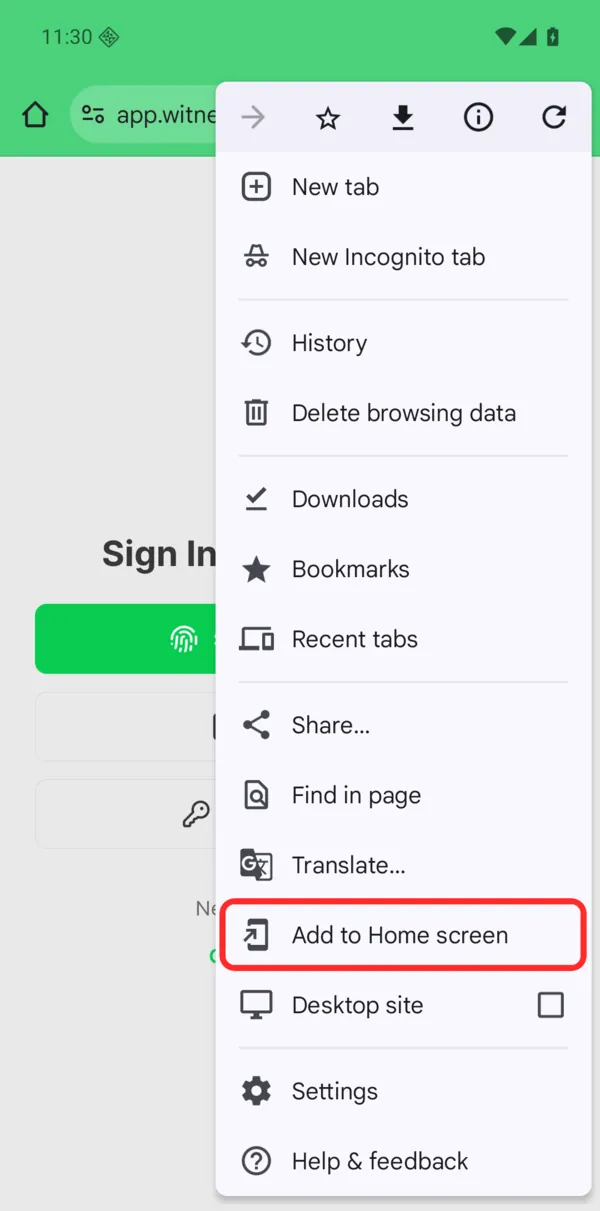
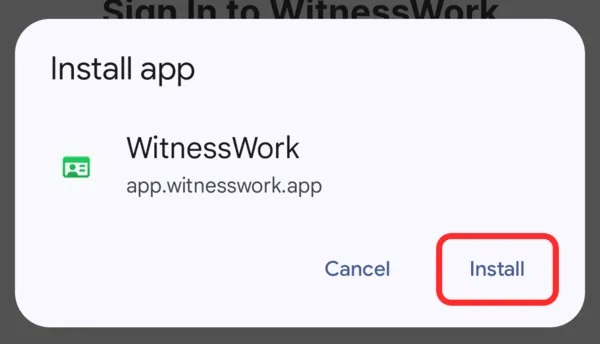
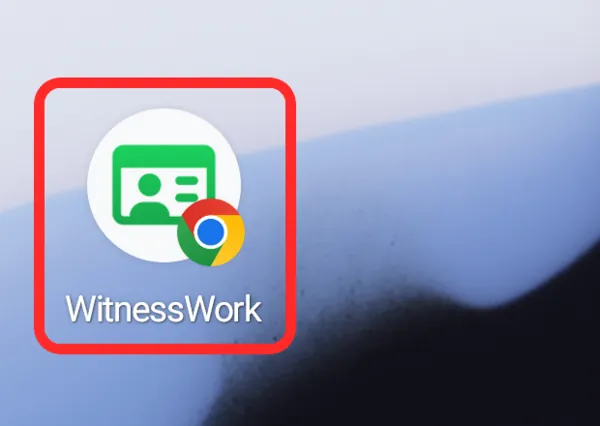
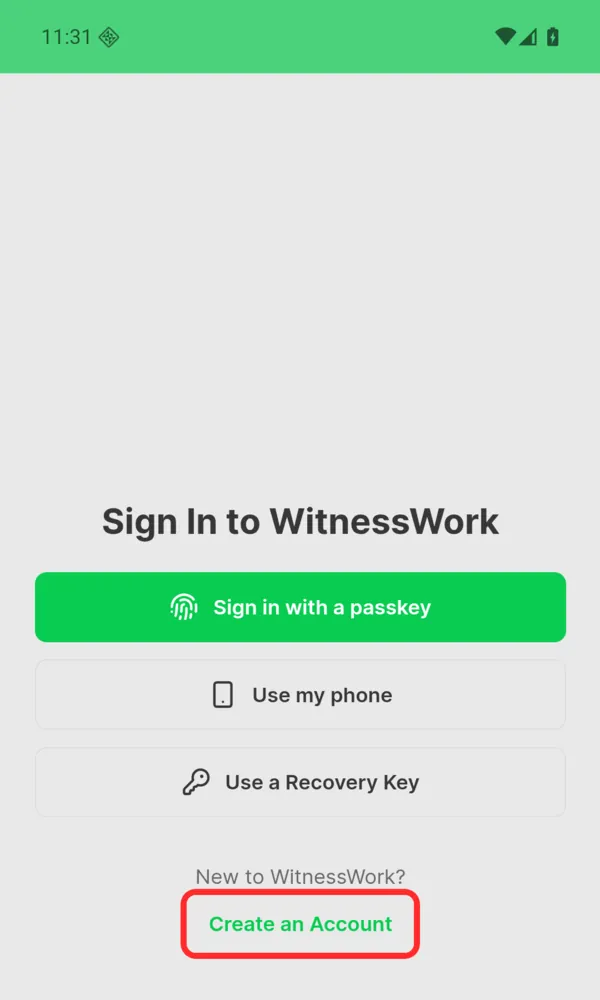
In the pictures, a red box shows what to tap.
Open Chrome on your Android phone and go to app.witnesswork.app. Wait for the Sign In to WitnessWork screen to load.
Tap Chrome's menu (the three dots at the top right), then tap Add to Home screen. Some phones show Install app instead.
Tap Install. If your phone asks again, tap Add to home screen.
Close the Chrome tab, then open WitnessWork from your Home screen or app list.
WitnessWork opens in its own window. Tap Create an Account if you're new, or sign in if you already use WitnessWork. See bring your records into the web app.
You may also see an Install App banner at the top of the page in Chrome. Tapping Install there does the same thing as steps 2 and 3.
Good to know
Always open WitnessWork from its Home screen icon. Your records are saved on your phone, so it works offline and syncs when you're back online.
Updates arrive automatically. When a new version is ready, tap Reload. See getting the latest version.
Reminders and phone notifications aren't available in the web app. See what the web app doesn't have.
Don't clear Chrome's site data for app.witnesswork.app. That signs you out on this phone and removes any changes that haven't synced yet.
Using an iPhone or iPad? See using WitnessWork without the App Store.
If something goes wrong
It says WitnessWork Is Open in Another Tab: tap Use Here, then close WitnessWork in Chrome. WitnessWork runs in one window at a time.
There's no Add to Home screen or Install app in the menu: see Why can't I install WitnessWork on my phone?.
Is WitnessWork on Android?
Yes. WitnessWork works on Android, and it's free. You can also use it in a web browser.
WitnessWork isn't in Google Play in some countries right now, including the United States. There, install it from Chrome instead. See getting WitnessWork on Android without Google Play.
What works on Android
Time and reports, the timer, contacts and follow-ups, and plans
The map, mileage, reminders, and backups
Buddies, including with buddies who use iPhone
Scribe AI
A few features need Apple services and stay on iPhone and iPad: iCloud Sync, widgets, Live Activities, and alternate app icons.
Keep your devices in sync
Cloud Sync works between Android, iPhone, and the web. Google Drive Sync works between Android devices. See What is Cloud Sync?.
Move to a new Android phone
On your old phone, open Settings → Account and tap Devices, then Set Up Another Device.
Follow the steps on the new phone. With Cloud Sync, your records arrive without a restore step.
If you turned on Backup in Settings → Account → Backup, the new phone offers to restore it.
You can also use a backup file. On your old phone, tap Settings → Backup & Restore → Create Backup and copy the file to the new phone. On the new phone, tap I already use WitnessWork when setup starts and choose From a backup file on the Welcome back screen. Between Android phones you can choose From Google Drive there instead.
Good to know
Keep backup files private. They can contain householder details.
To use WitnessWork in a browser, see Can I use WitnessWork in a web browser?.
Can I use WitnessWork in a web browser?
Yes. Open app.witnesswork.app in a current browser on a computer, phone, or tablet. It's the full WitnessWork app on the same account as your phones, so your time, plans, contacts, notes, and Buddies are there once you sign in.
Sign in
Choose one of these on the sign-in screen:
A passkey.
Your phone. See sign in on a computer with your phone.
Your recovery key.
To start fresh, choose Create an Account. See Can I create an account on the web?.
After you sign in, WitnessWork brings in your records first. Your work is saved in your browser, syncs through Cloud Sync, and keeps working offline. See offline on the web. To open it like an app, see installing it.
What the web app doesn't have
Device notifications and reminders. Plans and Follow-ups you set on the web remind you on your phones. The bell on Home works on the web.
Widgets, Live Activities, Siri and Shortcuts, the watch apps, and alternate app icons.
iCloud Sync and Google Drive Sync. The web uses Cloud Sync only. If your phones use something else, the web asks you to turn on Cloud Sync first.
Calendar sync.
Voice and photo input in Scribe AI. You type to it instead.
Good to know
The Map works, and exports and backups download as files.
The web app comes from WitnessWork's website each time you open it. If you'd rather not use a browser, WitnessWork works fully on your phone alone.
If something goes wrong
It couldn't get your account ready: check your connection and choose Try Again, or sign out.
It says Cloud Sync is paused, or a device saved data the browser can't read yet: your data is safe. Reload the page later, then choose Try Again.
How do photos, exports and backups work on the web?Web only
On the web, downloads go to your browser's download folder. Photos in notes, your profile photo and contact photos all sync with your phones.
Photos
Photos in notes: add one with the note editor's photo button, by pasting an image you copied, or by dragging an image file onto the note. They sync with your phones through Cloud Sync. Your phones' note photos appear once they've downloaded; until then the note says "This photo isn't on this device."
Your browser keeps its own copy of each photo, and signing out removes it. If the browser runs out of space for them, WitnessWork tells you.
Profile and contact photos: click the picture and choose Choose Photo to add one. They sync with your phones through Cloud Sync. Your phones' photos appear once they've downloaded; until then you see initials.
Removing or replacing a contact's or your profile photo on the web removes it from your phones too.
Downloads and sharing
Create Backup, Export CSV for a mileage report, and other exports download as files. Your browser may ask where to save them, or list them in its downloads.
On a computer, Share Report and other text shares copy the text. You see "Copied!" and can paste it where you need it.
On a phone, sharing opens the phone's share sheet. If your browser can't do that, the file downloads.
Imports
Restore From Backup, Import Contact, and the MyTime import open your browser's file chooser. MyTime files (.mytimedb) stay on your computer, and one over 25 MB is refused. WitnessWork backups are locked with a password. Enter it to restore.
Good to know
A downloaded backup can contain householder details. Keep it private.
If something goes wrong
Nothing downloads: check that your browser isn't blocking downloads for this site. For more help, see Contact Support.
Which browsers does WitnessWork on the web work in?Web only
WitnessWork on the web is tested in current Chrome, Safari, and Firefox, on computers, phones, and tablets. Keep your browser up to date. Other current browsers, such as Microsoft Edge, may work but aren't tested.
Good to know
Signing in with a passkey needs a browser and a password manager or device that support passkeys. See What is a passkey?.
WitnessWork keeps your data in the browser. If that data is erased, you sign in again, and changes that hadn't synced are lost. See What does WitnessWork keep in my browser?.
If something goes wrong
Passkey sign-in isn't offered or fails: choose Use my phone or Use a Recovery Key on the sign-in screen instead.
How do I install WitnessWork on my home screen or desktop?Web only
You can use WitnessWork in a browser tab, or install it so it opens in its own window like an app. It's the same app either way.
Install it
Chrome or Edge on a computer: open app.witnesswork.app and use the install icon in the address bar, or the menu's Install entry.
Safari on a Mac: open the File menu and choose Add to Dock.
iPhone or iPad: in Safari, tap Share, then Add to Home Screen. See the steps with pictures.
Android: in Chrome, open the menu and choose Add to Home screen or Install app, then Install. The Install App banner at the top, when you see it, does the same. See the steps with pictures.
Good to know
A web app on an iPhone Home Screen keeps its data even if you don't open it for a while. See What does WitnessWork keep in my browser?.
On iPhone and iPad, Safari shows Apple's banner for the App Store app instead.
Close the Install App banner with its X. It stays closed in that browser until its site data is erased or you sign out.
There's no banner on a computer, or once WitnessWork is installed.
Can't install it? See Why can't I install WitnessWork on my phone?.
Can I use WitnessWork on iPhone or iPad without the App Store?
Yes. Add the WitnessWork web app to your Home Screen from Safari. It's the full app, and it opens in its own window like any other app. Use this if WitnessWork isn't in the App Store where you live, or if you'd rather not install it from there.
Add it to your Home Screen
In the pictures, a red box shows what to tap.
Open Safari and go to app.witnesswork.app. Wait for the Sign In to WitnessWork screen.
Tap the menu button at the left of the address bar, the three lines. Then tap Share. On older iPhones, tap Share at the bottom of the screen.
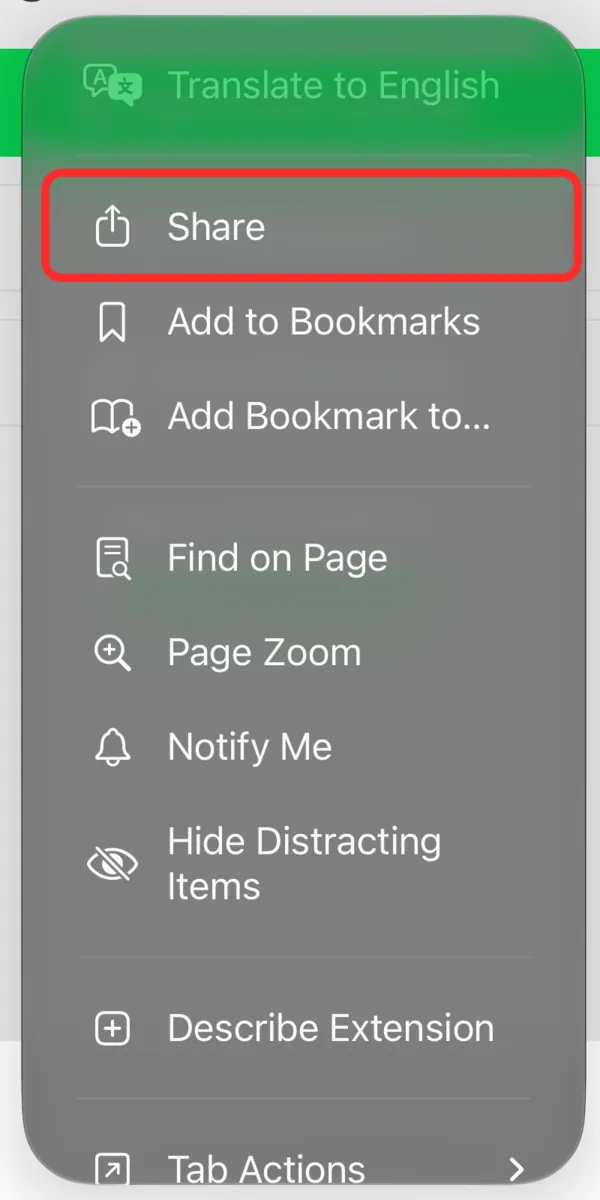
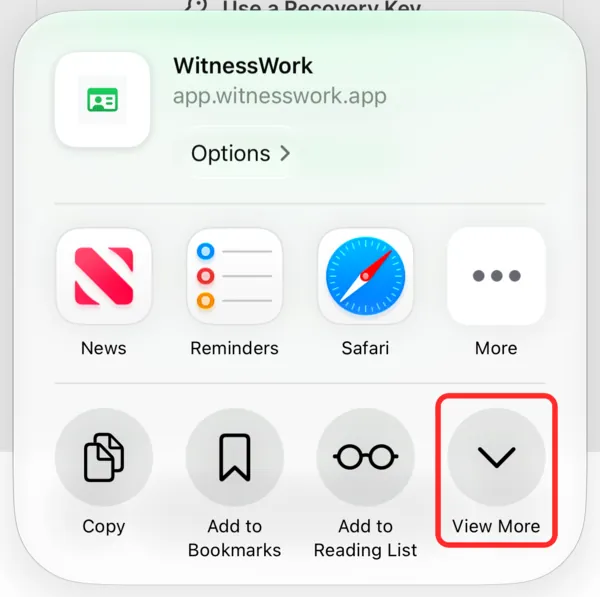
Tap View More.
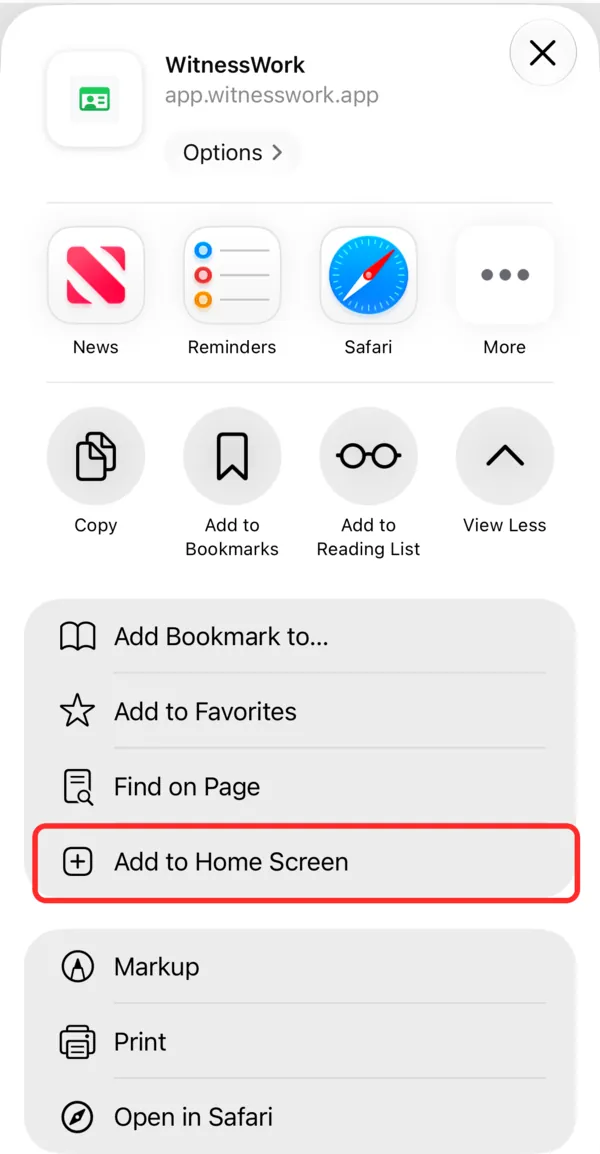
Tap Add to Home Screen.
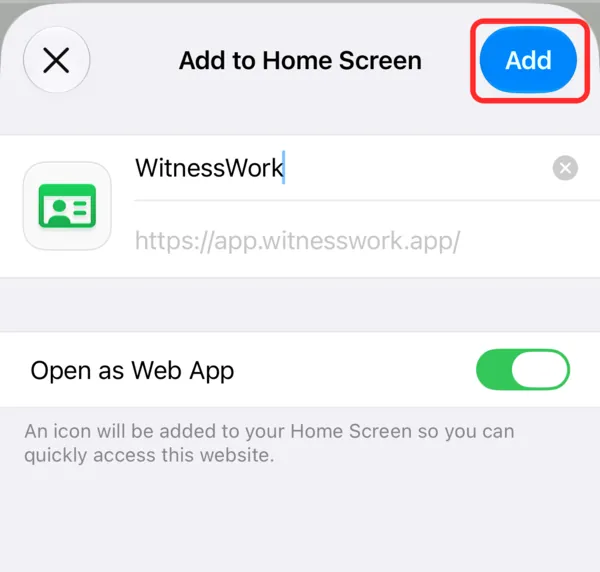
Leave Open as Web App on, and tap Add.
Open WitnessWork from your Home Screen. If you're new, tap Create an Account. If you already use WitnessWork, sign in.
Good to know
Always open WitnessWork from its Home Screen icon. Safari erases a website's data after 7 days without a visit, but a web app on your Home Screen keeps it.
It can't send reminders or notifications. See what the web app doesn't have.
To move your records over, see bring your records into the web app.
On Android? See getting WitnessWork on Android without Google Play.
Why can't I install WitnessWork on my phone?
Most often, the page hasn't finished loading, or the browser can't install web apps. Open app.witnesswork.app in Chrome on Android, or Safari on iPhone, and wait for the Sign In to WitnessWork screen before you open the menu.
If something goes wrong
Chrome's menu has no Add to Home screen or Install app: reload the page and wait for it to finish. Check your connection. Update Chrome from the Play Store if you can.
You use Samsung Internet, Firefox, or another browser: look in its menu for Install, Add to Home screen, or Add page to. If it isn't there, use Chrome.
You're in an Incognito or private tab: web apps can't be installed there. Open a regular tab.
The icon opens a browser tab with an address bar: you added a shortcut, not the app. Remove the icon, then install again and choose Install.
It says it's already installed: look for WitnessWork in your list of apps. To install again, remove it first.
You removed WitnessWork by accident: install it again and sign in. Your synced records come back.
For the full steps, see getting WitnessWork on Android without Google Play or on iPhone without the App Store.
How do I bring my records into the WitnessWork web app?
Sign in to the web app with the same account you use in WitnessWork now. Your time, plans, contacts, and notes come over by themselves through Cloud Sync.
Sign in with your recovery key
This works when the web app is on the same phone as your old WitnessWork, or on a new phone.
In the WitnessWork app you use now, open Settings → Account, tap Security, then Show Recovery Key. Copy the key. It starts with WW1-.
Open the web app and choose Use a Recovery Key.
Wait for the security check to pass, then paste or type your key.
If it asks to turn on Cloud Sync, choose Turn On.
Your records arrive in a minute or two. Keep the old app open and online until they do.
Other ways to sign in
You have another phone with WitnessWork: choose Use my phone and scan the code with that phone. See sign in with your phone.
You saved a passkey: choose Sign in with a passkey.
Use a backup file instead
If you'd rather not sign in, move a backup file.
In the WitnessWork app you use now, open Settings → Backup & Restore, tap Create Backup, and choose Password.
Save the file where the web app's phone can open it, such as your Downloads folder.
In the web app, choose Create an Account.
Open Settings → Backup & Restore, tap Restore From Backup, choose the file, and enter its password.
Good to know
A backup file leaves out photos and shared cars. Signing in brings everything.
Keep your recovery key and backup files private. They can hold householder details.
See How do I back up and restore my data? and Why did my phone switch to Cloud Sync?.
Does WitnessWork work offline on the web?Web only
Yes. WitnessWork on the web opens without a connection and saves your changes in your browser. They sync when you're back online.
When you're offline
A banner says: "You're offline. Reconnect to sync your changes. They're saved on this device until then." Keep working.
Syncing, Scribe AI, and map search and directions wait until you're back online.
A language you haven't used yet needs a connection the first time you pick it.
Good to know
Changes that haven't synced exist only in that browser. They're lost if the browser's data is erased, for example when you sign out or clear site data. See What does WitnessWork keep in my browser?.
If you work offline for long, reconnect and let your changes sync before you sign out or switch computers.
What does WitnessWork keep in my browser?Web only
WitnessWork on the web keeps your records and sign-in in your browser, so it opens straight to your data and works offline. They stay there until you sign out.
Good to know
Signing out erases your records and sign-in from that browser. So does clearing site data. Your account and synced records are not lost, as long as you have a way to sign in again. See What if I lose access?.
There's no automatic lock. Anyone who can use that browser can open WitnessWork in it. On a shared computer, sign out when you're done. See Signing out on the web.
WitnessWork works in one tab at a time. See Why does WitnessWork say it's open in another tab?.
Safari
Safari erases a site's data after 7 days without a visit. A web app on an iPhone Home Screen is exempt. If it happens, sign in again, for example with your passkey, and your synced records come back. Changes that hadn't synced are lost, so keep Cloud Sync on and let it finish.
If something goes wrong
Your browser can't save: WitnessWork keeps working and tells you once. If you're out of space, free up space on your device and keep the tab open. WitnessWork saves your changes as soon as it can.
You're in a private window: some don't let sites save anything. Changes are lost when you close the tab, so use a regular window.
Why does WitnessWork say it's open in another tab?Web only
WitnessWork on the web works in one browser tab at a time, so two tabs can't overwrite each other. A second tab says WitnessWork Is Open in Another Tab.
Keep working in this tab
Choose Use Here.
WitnessWork finishes saving in the other tab, then opens here.
Go back to the other tab
Switch to the other tab and choose Use Here there.
Good to know
Closing the tab you're using frees it. The next tab you open or reload opens normally.
This only applies to one browser. Other browsers and your phone aren't affected. They stay in sync through Cloud Sync.
Can I open a shared contact or Buddies invite on the web?Web only
Yes. If you don't have the WitnessWork app on that device, the link's page offers Continue on the web. It opens WitnessWork at app.witnesswork.app.
Open a shared contact
Tap the link and choose Continue on the web.
Sign in if asked.
When WitnessWork asks Import Contact?, choose OK to add it, or Cancel to leave it out.
Nothing is saved until you choose.
Open a Buddies invite
Tap the link and choose Continue on the web.
Sign in if asked.
Check who invited you, then accept.
Good to know
If WitnessWork is locked or open in another tab, unlock it or choose Use Here first. The contact or invite opens right after.
WitnessWork keeps a link you haven't opened yet for up to an hour. After that, open the link again.
Reloading the page or sharing a screenshot of it doesn't show the contact or invite.
A Buddies invite works once and expires after seven days.
If something goes wrong
The link isn't valid: it was cut short or changed when it was copied. Ask the sender to share it again. See problems with a Buddies invite.
How do I get the latest version of WitnessWork on the web?Web only
There's nothing to download. WitnessWork on the web gets new versions by itself, in the background, after it opens. When a new version is ready, it shows Update available with a Reload button.
Get the new version
Choose Reload.
If you installed the web app, close it and open it again.
Good to know
WitnessWork never reloads by itself while you're working. If you wait, the message comes back when you return to the tab.
Reloading the page yourself opens the version you already have. To get the new one, choose Reload on the message.
A tab left open a long time can reload once by itself.
Reloading doesn't erase your records. Anything that hadn't synced yet syncs afterward.
If something goes wrong
It says Update Required: choose Reload WitnessWork. If that doesn't help, close the tab, open app.witnesswork.app again, and check your connection.
Is my data private and secure?
Yes. WitnessWork has no ads, and your records live on your phone. Nothing you share with WitnessWork is tied to your name.
What WitnessWork knows about you
The phone app needs no sign-up. Your account has no email, phone number, or password. You can save a passkey, which is a way to sign in.
On the web, you sign in to the same account, or create one with a passkey. A security check on that page sees your internet address and browser details.
Usage statistics are anonymous counts. They never include names, contacts, reports, or notes. Turn them off in Settings → Privacy.
Crash reports are anonymous too. When something goes wrong, the app sends what failed, with no names, contacts, reports, or notes. Turn them off with Share Anonymous Crash Reports in Settings → Privacy.
Neither one includes where you are.
Purchases in the phone apps use a random number, not your name or email.
What leaves your phone, and who can read it
Backup and Cloud Sync (both off until you turn them on): a copy is saved that only your own devices can read. Not even WitnessWork can read it. Cloud Sync is also how the web app gets your records.
iCloud Sync and Google Drive Sync go straight to your own Apple or Google account, not through WitnessWork. They're locked on your devices first, so Apple and Google can't read them.
Buddies and shared cars in Mileage: only you and the people you share with can read them.
Shared contacts travel inside the link you send. WitnessWork doesn't keep a copy.
Scribe AI sends what you ask to providers that don't store it. Route planning sends only map locations.
On the web
Your records and sign-in stay in your browser until you sign out.
About 1 in 10 sessions are recorded as screen replays with all your text, inputs, photos, and the map hidden before anything is sent. They are kept for 30 days.
Replays are never recorded when data protection mode is on. In the EU, the UK, and Switzerland, they happen only if you turn on Share Masked Screen Recordings in Settings → Privacy.
Turn usage statistics off in Settings → Privacy to stop replays too.
Good to know
Backup files you export belong to you. Keep them somewhere private, because they can include householder details.
WitnessWork deletes its own temporary copies of exported backups, shared contact files, and picked photos the next time it starts and when you permanently delete householder data.
For details, read the Privacy Policy under Settings → About. For privacy questions, use the private support link in the Help Center.
Does EU / GDPR mode apply to all my devices?
Yes. When you turn EU / GDPR mode on or off on one device, your other devices that sync with it ask before they do the same.
Turn it on everywhere
Open Settings → Privacy.
Turn on EU / GDPR mode, then tap Turn on.
The next time you open WitnessWork on each of your other devices, it says Moving to EU / GDPR mode. Tap Turn on.
To keep it off on one device, tap Not on this device there instead.
Turn it off
Turn off EU / GDPR mode on one device. Your other devices ask Turn off EU / GDPR mode here too? Tap Turn off, or Keep it on.
Good to know
A device you kept out shows On for your other devices under the switch. To match your other devices, turn the switch on there.
In a web browser, choose OK to follow your other devices or Cancel to keep this one as it is.
A device that doesn't sync keeps its own setting.
While EU / GDPR mode is on for your account, Calendar Sync leaves names and addresses out of events.
Why do I see only some of my photos?iOS only
When your iPhone or iPad asked about photos, you chose Select Photos, so WitnessWork can see only the photos you shared with it.
Share more photos
In WitnessWork, open the photo picker, for example from a contact picture or a note.
Tap Manage above the photos.
Select the photos you want, or deselect any you'd rather keep private.
Confirm. They appear right away.
Let WitnessWork see all your photos
Open your iPhone's Settings app.
Go to Apps → WitnessWork → Photos.
Choose Full Access.
Good to know
WitnessWork copies only the photos you pick. It reads nothing else from your library.
If something goes wrong
A photo won't load: it may still be downloading from iCloud. Check your connection and try again.
Still need help?
Email for private support, or report a bug or request a feature on GitHub. Include what you tried, your device, and your WitnessWork version. Leave contact details, private notes, and account IDs out of public reports.
Reach out privately by email at support@witnesswork.app