Time & Reports
How do I log time or plan a specific day?
Tap the day to open it, then add time or a plan there.
Open a day
Tap the day on the Schedule tab, in This Week on Home, or under All Days on the Progress tab. The day opens in the bottom half of the screen. Tap another day to switch to it.
Log time
Open the day. Today and earlier days show the time form under Time Reports. For a later day, tap Add Time first.
Tap an amount such as 2h, tap − or + to change it by 15 minutes, or tap the time to type exact hours and minutes.
Change the Type or add a note if you like.
Tap Add.
Plan a day
Open the day and tap Plan Day under Plans.
Add a title if you like.
Choose One Time or Recurring, and how long.
Tap Add.
Good to know
You can also choose a day while you add time. Add Time on Home shows the last seven days. Tap a day, or tap the date to pick any other day.
If the day has a plan and no time yet, tap Use beside the planned time to fill in its length and Type.
To log a plan you kept, touch and hold it and choose Log as Time.
Tap an entry to change or delete it. See How do I change or delete time I already logged?
To see more of the day, drag the bar at the top up or down. To close it, tap the X or drag it all the way down.
Logging time shows up only if your status logs hours. Kingdom Publishers turn on Log my hours in Settings → Profile first.
How do I change or delete time I already logged?
Open Add Time, pick the day, and tap the entry you want to change or delete.
Change an entry
On Home, open Add Time. You can also use the + button.
Tap the day in the row of days at the top. To pick another day, tap the date above them.
Tap the entry in the list under the days.
Change the time, Type or note. To move it, tap another day.
Tap Save.
To leave an entry without saving, tap it again. If you changed something, WitnessWork asks before it throws the change away.
Delete an entry
Open Add Time and pick the day.
Touch and hold the entry, then choose Delete. On the web, right-click it.
Deleting can't be undone.
Good to know
A day with more than three entries shows the first two. Tap Show more to see the rest.
To log time on several days, add the first entry, then tap Add Another on the message that confirms it.
Logging time shows up only if your status logs hours. Kingdom Publishers turn on Log my hours in Settings → Profile first.
You can also change an entry from its day. See How do I log time or plan a specific day?
Does my time automatically roll over to the next month?
Yes, if you turn it on. Hours you're short of your monthly goal can carry over to the next month.
Turn on rollover
Open Settings → Profile → Advanced.
Turn on Automatic time rollover.
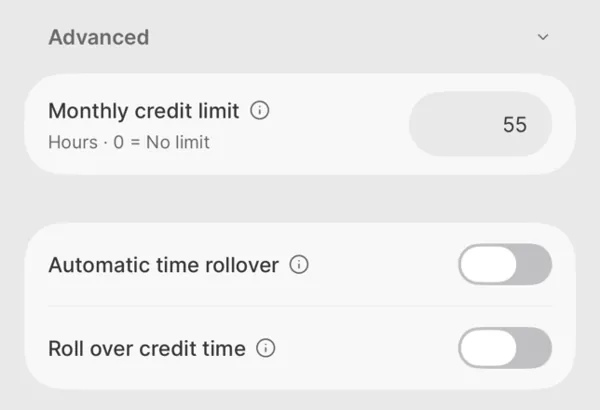
It shows only if you log hours. The carried hours appear when the new month begins, so you don't need to subtract or re-enter anything.
How are Bible studies counted?
Bible studies are counted per contact, not per day. Each contact you study with counts as 1 study for the month, however many times you meet.
Count a study
Open the contact.
Log a conversation.
Mark it Conducted Bible Study.
Good to know
To raise your study count, mark a study with a different contact.
A contact someone shared with you is theirs, so their visits don't count for you. Once you log your own study with that contact, it counts.
Is there an Apple Watch app?iOS only
Yes. WitnessWork has an Apple Watch app for an iPhone paired with an Apple Watch on watchOS 26 or later.
Install it
If Automatic App Install is on, the app installs by itself. Otherwise, open the Watch app on your iPhone.
Find WitnessWork under Available Apps and tap Install.
Open WitnessWork on your iPhone once, so your watch gets your progress.
What you can do
See this month's hours and whether you're ahead of or behind your plans.
Add time for today, with an optional Type.
Start and pause your iPhone's timer, and save its time as an entry.
Mark that you shared in the ministry this month, if you don't log hours as a Publisher.
Add the Monthly Progress complication to a watch face to see your hours toward this month's goal, and Up Next to see your next follow-up or plan. See What does Up Next on my Apple Watch show?
Use Siri on your watch. See Can I use Siri or Shortcuts with WitnessWork?
Good to know
Your iPhone keeps your records. The watch can't edit or delete entries.
The watch never receives your notes or contact details. For Up Next it gets the names, addresses and topics of your follow-ups and the titles and places of your plans for the next two weeks.
The app needs your iPhone, so it isn't available on an Apple Watch set up with Family Setup.
With an Android phone, use the Wear OS app instead.
If the watch says Syncing with iPhone, see Why does my Apple Watch say Syncing with iPhone?
Why does my Apple Watch say Syncing with iPhone?iOS only
Your watch shows Syncing with iPhone while time you added on the watch is still on its way to your iPhone. It finishes when your iPhone is nearby and you've opened WitnessWork on it.
What to do
Keep your iPhone nearby and unlocked.
Open WitnessWork on your iPhone.
Open WitnessWork on your watch.
Good to know
The watch total includes the new time right away. Credit Time is added once your iPhone saves it, because your iPhone applies your monthly Credit limit.
Each entry keeps the day you added it, and is saved only once.
Starting, pausing and stopping the timer need your iPhone nearby.
After your iPhone restarts, unlock it once before syncing.
If something goes wrong
The watch says the timer changed on your iPhone: check the time, then try again.
The watch says your iPhone couldn't save an entry: the time was not added. Try again.
The watch asks you to update WitnessWork on your iPhone: update it, then try again.
The watch stays out of date, or its complications show a dash: follow the three steps above.
Still stuck: use the Help Center's private support link, and keep your records out of public reports.
What does Up Next on my Apple Watch show?iOS only
Up Next shows whichever comes first: your next follow-up or your next plan. Plans appear only if you log hours.
Add it to your watch
Touch and hold your watch face and tap Edit. Or use the Watch app on your iPhone.
Add the Up Next complication to your watch face or Smart Stack.
You can also open it from the watch app's home screen.
Use it
Tap Up Next.
Tap Directions to get directions in Maps on your watch.
For a plan, tap Start Timer to start your iPhone's service timer. Your iPhone needs to be nearby.
Good to know
A follow-up or plan stays up for 15 minutes after it starts, so you can check the address or topic. Then the next one takes its place.
A plan with no start time shows all day, after that day's timed items.
Up Next looks two weeks ahead.
Names and topics are hidden while your wrist is down or your watch is locked, because others may see your watch face.
Missed follow-ups don't appear. Find them in WitnessWork on your iPhone.
If something goes wrong
It's out of date: open WitnessWork on your iPhone, then on your watch.
Still stuck: use the Help Center's private support link, and keep householder details out of public reports.
Is there a Wear OS app?Android only
Yes. WitnessWork has a Wear OS app for an Android phone paired with a watch on Wear OS 3 or later.
Install it
Install WitnessWork from the Play Store on your watch. Or open WitnessWork's Play Store page on your phone and install it on the watch from there.
Open WitnessWork on your phone once, so your watch gets your progress.
Allow notifications when your watch asks, so a running timer can show there.
What you can do
See this month's hours and whether you're ahead of or behind your plans.
Add time for today, with an optional Type.
Start and pause your phone's timer. While it runs, it shows on your watch face with Pause and Stop. Stop adds the timer's whole minutes as an entry for today.
Mark that you shared in the ministry this month, if you don't log hours as a Publisher.
Add the Monthly Progress and Up Next complications to a watch face, and the Monthly Progress tile to start or pause your timer or add time.
Good to know
Your phone keeps your records. The watch can't edit or delete entries.
The watch never receives your notes or contact details. For Up Next it gets the names, addresses and topics of your follow-ups and the titles and places of your plans for the next two weeks.
Because others may see your watch, Up Next shows "Follow Up" instead of a name on watch faces. Open it to see who it is.
Wear OS can't add time or log trips by voice. Use the tile or the app instead.
The app needs your phone with WitnessWork installed.
If the watch says Syncing with phone, see Why does my Wear OS watch say Syncing with phone?
Why does my Wear OS watch say Syncing with phone?Android only
Your watch shows Syncing with phone while time you added on the watch is still on its way to your phone. It finishes when your phone is nearby and you've opened WitnessWork on it.
What to do
Check that your watch is connected to your phone in your watch's companion app.
Keep your phone nearby.
Open WitnessWork on your phone.
Open WitnessWork on your watch.
Good to know
The watch total includes the new time right away. Credit Time is added once your phone saves it, because your phone applies your monthly Credit limit.
Each entry keeps the day you added it, and is saved only once.
Starting, pausing and stopping the timer need your phone nearby. WitnessWork doesn't need to be open on it.
If something goes wrong
The watch says the timer changed on your phone: check the time, then try again.
The watch says your phone couldn't save an entry: the time was not added. Try again.
The watch asks you to update WitnessWork on your phone: update it, then try again.
The watch stays out of date, or its complications show a dash: follow the four steps above.
Still stuck: use the Help Center's private support link, and keep your records out of public reports.
Can I use Siri or Shortcuts with WitnessWork?iOS only
Yes, on iPhone and iPad with iOS 17 or later, and on the Apple Watch app. Open WitnessWork once after updating, then say a phrase like "Add time in WitnessWork".
Phrases to say
"Add time in WitnessWork". You can also say log, enter, record, track or submit.
"Log two hours in WitnessWork" or "Add 30 minutes to WitnessWork". Siri knows common amounts from 15 minutes to 12 hours. For any other amount, Siri asks how long.
"Start my timer in WitnessWork", "Pause my timer in WitnessWork" or "Stop my timer in WitnessWork".
"Log a trip in WitnessWork" or "Log a round trip in WitnessWork". Siri asks how far. For a round trip, say the one-way distance and it's doubled.
Good to know
Time and trips are added for today, as Standard time and with the car you used last. To pick a Type or car, add the action in the Shortcuts app. There you can also run it from the Action Button or a Home Screen shortcut.
Stopping the timer adds its whole minutes as an entry for today. With less than a minute, nothing is added.
Adding time and the timer need you to log hours. Turn on Log my hours first if you're a Kingdom Publisher.
Logging trips needs Track Mileage on and at least one car.
Siri listens in your Siri language, which can differ from the language you chose in WitnessWork.
Siri uses only your Types, car names, distance unit and timer. It never sees your contacts, notes or reports.
Siri and Shortcuts aren't available on Android.
If something goes wrong
Siri doesn't recognize a phrase: open WitnessWork once, wait a minute, and check that Siri is allowed for WitnessWork in your phone's Settings.
Still stuck: use the Help Center's private support link, and keep your records out of public reports.
I'm a Kingdom Publisher. How do I log my hours?
Turn on Log my hours in Settings → Profile. Then you can log time and see your progress, just for yourself.
Kingdom Publishers report only whether they shared in the ministry, so Home shows a checkbox for that instead of Add Time.
Turn on hour logging
Open Settings → Profile.
Turn on Log my hours.
If you like, set a Monthly Goal.
Add Time, the timer and the Progress tab now appear.
Good to know
Your report still says only whether you shared. Any time you log also counts as sharing.
WitnessWork asks about this once, during setup or in the notifications on Home. If you said no, you can turn it on here at any time.
Turning it off hides these without deleting the time you logged.
Auxiliary pioneering this month? Set that in Settings → Profile instead. You'll log hours toward that month's goal, and the next month goes back to the checkbox.
How do I switch between Publisher and Auxiliary Pioneer mid-month?
Change your status in Settings → Profile → Status. Goals and totals adjust to match.
Switch your status
Open Settings → Profile → Status.
Choose what fits right now: Kingdom Publisher, Regular Auxiliary, Regular Pioneer, Special Pioneer, Circuit Overseer, or Custom.
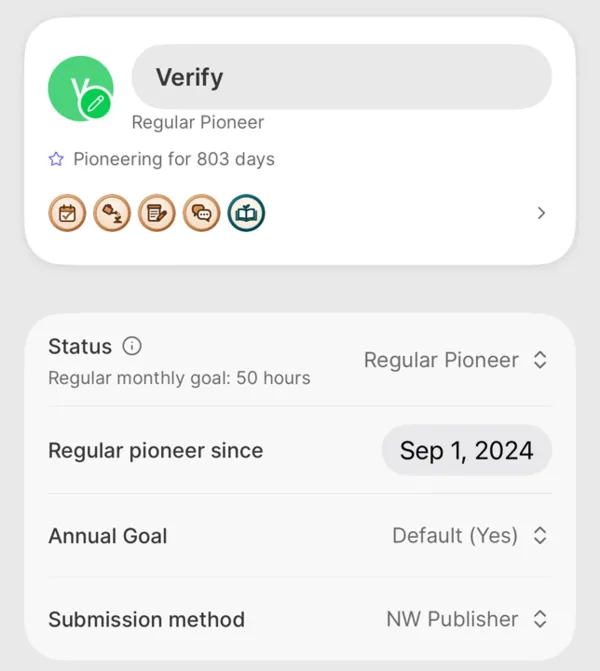
Switch back when you're done. Past months keep the time you entered, so your history stays accurate.
Does the app submit my service report for me?
No. WitnessWork prepares your report, and you choose how to send it.
Send your report
On Home, tap Submit on the Service Report card. Or open the month's Field Service Report.
Under the report, tap Submission method and choose how you send it: copy it, share it, or open it in Hourglass or NW Publisher.
Tap the green Submit button below it.
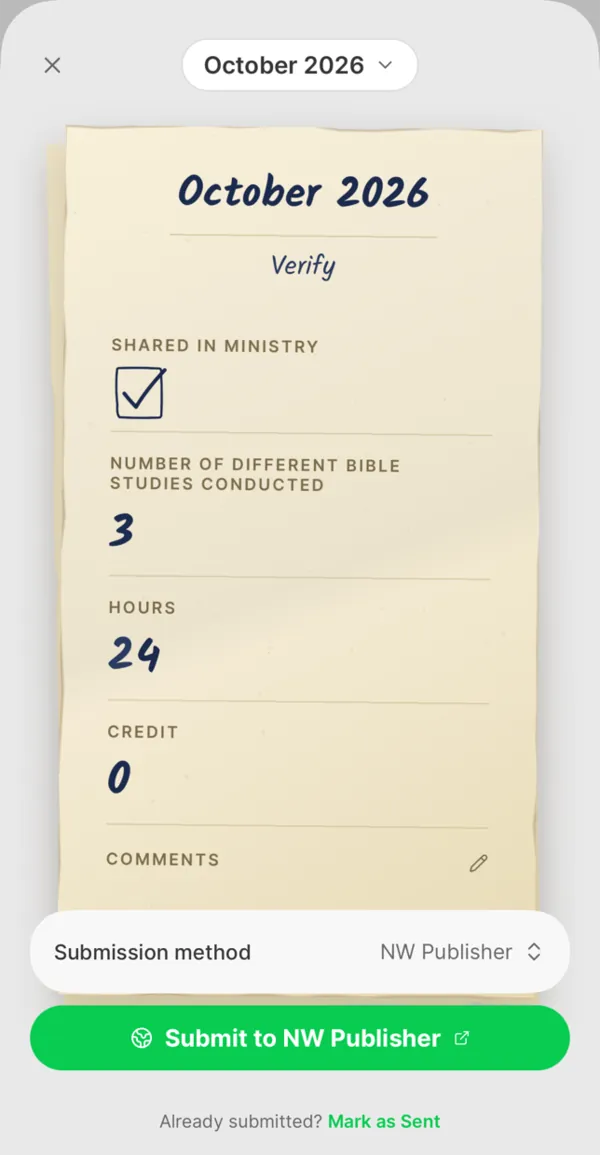
The report then shows Sent with the date. Already sent it another way? Tap Mark as Sent under the button.
Good to know
Hourglass and NW Publisher open with your hours, Credit and Bible studies filled in. Check them and send from there.
Hourglass gets your Credit in the report comment. If you change the comment, check that it still says what you need.
NW Publisher only accepts last month's report.
WitnessWork remembers your choice. To change it, open Settings → Profile → Submission method.
Already reported another way? Touch and hold the Submit row on Home and choose Already Submitted.
Update WitnessWork if you don't see Hourglass or NW Publisher in the menu.
If something goes wrong
Marked as sent by mistake: tap Undo below the Submit button. You can also press and hold the month's card and choose Mark as Not Sent.
Shared it on Android: the app can't tell whether you sent it. Tap Mark as Sent below the Submit button.
Your phone was offline: when you're back online, WitnessWork asks whether the report arrived. Choose Mark as Sent if it did.
Can WitnessWork remind me when my report is ready to submit?iOS and Android only
Yes. WitnessWork can remind you on the 1st of each month that last month's report is ready. It never sends your report for you.
Turn on the reminder
Open Settings → Notifications.
Turn on Remind Me to Submit My Report.
If asked, allow notifications.
You can also tap Remind Me when the report screen offers it after you submit.
Good to know
The reminder comes at your Remind At time. It's 9:00 AM unless you change it.
Tap the reminder to open that month's report, then send it the way you usually do.
There's no reminder for a month with nothing logged, or for a report you've already sent.
Each device sets its own reminder. If you submit on another device, open WitnessWork on this one so it knows.
Until you submit, last month's report also shows on Home's Service Report card and in the Home bell, even with reminders off.
If you sent it another way, tap ⋯ on the card and choose Mark as Sent.
If something goes wrong
No reminder came: check that notifications are allowed for WitnessWork in your phone's settings, and that Focus or Do Not Disturb isn't silencing them. On Android, also check its Reminders category.
On Android it came a few minutes late: your phone may delay reminders to save battery.
Still stuck: report the problem from the Help Center, without names or other private details.
How do I see my hours left and whether I'm ahead or behind?
Open the Progress tab. The Month view shows how many hours and days you have left, and whether you're ahead of or behind your plans.
See your month
Tap Progress in the bottom bar.
Stay on Month. The report shows time so far and hours left.
Read the line under it to see if you're ahead of or behind your plans.
The Daily Pace card shows how much you need each day. Add it with Edit Cards if it isn't there. See How much do I need each day to reach my goal?
See your year
Pioneers can switch to the Year view.
Tap Progress, then Year.
The Service Year Pace chart shows how far ahead of or behind your Annual Goal you are today.
Each month's bar shows how that month did against its goal.
The Year Pace card shows how much you need each month for the rest of the service year. See How do I read the Service Year Pace chart?
How much do I need each day to reach my goal?
The Daily Pace card on the Progress tab shows how much time you need each day to reach your monthly goal.
Add the card
Open the Progress tab and go to the Month view.
Tap Edit Cards, then Add Cards.
Choose Daily Pace.
It's already there if your status has a monthly goal.
Good to know
It divides what's left of your goal by the days left in the month after today. With 25 of 50 hours done and 20 days left, it shows 1.3 hours a day. The figure rounds up a little, so keeping to it is always enough.
On the last day of the month, it shows everything that's left as today's amount.
Make the card wide to also see about how much that is a week.
Credit counts up to your monthly limit, as on your report. Your plans aren't counted. The Projected Month card shows where your plans put you.
Once you reach your goal, the card says so.
For a past month it shows what you averaged a day. For a future month it shows what each day would need.
It doesn't appear when the month has no goal.
For the whole service year, the Year Pace card does the same with your annual goal.
How do I read the Service Year Pace chart?
The Service Year Pace chart shows how your time so far compares with where your Annual Goal puts you.
Find it
Open the Progress tab.
Tap Year.
Scroll below your milestones to Service Year Pace.
It appears only if your status has an Annual Goal, such as Regular Pioneer.
Read the chart
Dashed gray line: where your Annual Goal puts you by the end of each month.
Green line: your time so far, counted like your Service Report, with each month's Credit limit.
Dashed green line: adds the time you've planned.
Faint line: last service year, with its total at the end.
Ahead of pace: compares your time with where the gray line is today.
Press and hold the chart, then slide your finger, to see any month's totals.
Month bars
Below the chart, each month has a bar. Solid is logged time, lighter is Credit, and striped is plans. A tick marks that month's goal. Every bar uses the same scale, so you can compare months.
Good to know
Without an Annual Goal you see the month bars but not the chart.
If a month looks wrong, press and hold it to change its status or goal.
Why was my timer rounded to the nearest 5 minutes?
The timer no longer rounds. When you stop it, WitnessWork saves the exact time on the stopwatch.
If you still see 5-minute rounding, update WitnessWork to the latest version.
Can I add notes to a time entry?
Yes. When you add or change a time entry, you can write a note on it, such as "cart witnessing" or "cut short".
You can also give an entry a Type, so similar entries stay grouped in your time reports.
I'm a special pioneer, why is the app showing me an annual goal?
Special Pioneers don't have an Annual Goal by default. To turn it off, open Settings → Profile and set Annual Goal to No.
Your monthly goal stays, and the annual bar on the Year view of the Progress tab is hidden.
Are LDC and other credit hours included in my totals?
Yes. Credit hours, including LDC, count toward your monthly total.
For your service year total, up to 55 Credit hours a month count, following the branch's published limit. Anything above that stays on the entry but isn't added to the service year total.
Will my entries, plans, or reminders move if I travel to another time zone?
No. Your entries and plans stay on the day you gave them, wherever you travel, including across daylight saving changes.
Good to know
A plan's time stays on the clock. A 10:00 AM plan still reads 10:00 AM on the day clocks change.
When you open WitnessWork in a new time zone, Home, Schedule and Progress switch to today in that zone.
Reminders set for a time of day move to that same time where you are. This covers a plan's reminder and the reminders to log time, plan next week or submit your report.
Follow-ups keep their exact moment, so they show at the matching local time.
If something goes wrong
An entry is on the wrong day: please send a bug report from the Help Center and we'll take a look.
Still need help?
Email for private support, or report a bug or request a feature on GitHub. Include what you tried, your device, and your WitnessWork version. Leave contact details, private notes, and account IDs out of public reports.
Reach out privately by email at support@witnesswork.app